Paying a small team by spreadsheet works, right up until it doesn't — a formula that's slightly off, a deduction forgotten for one person, a payslip that takes longer to format than the payroll run itself took to calculate. None of it is complicated in principle. It's just tedious in a way that invites small, quiet mistakes. Here's how to run the same process properly, without the spreadsheet.
Step 1: Set up each employee once
Under Employees, add each staff member with their position, salary amount, and pay frequency — monthly, bi-weekly, or weekly, matching however they're actually paid. Set which wallet their pay comes from and which expense category it should be recorded under, so every payment lands in your books correctly without you needing to categorize it by hand each time. This is a one-time setup per employee; you won't need to re-enter any of it for future payroll runs.
Step 2: Run payroll for the period
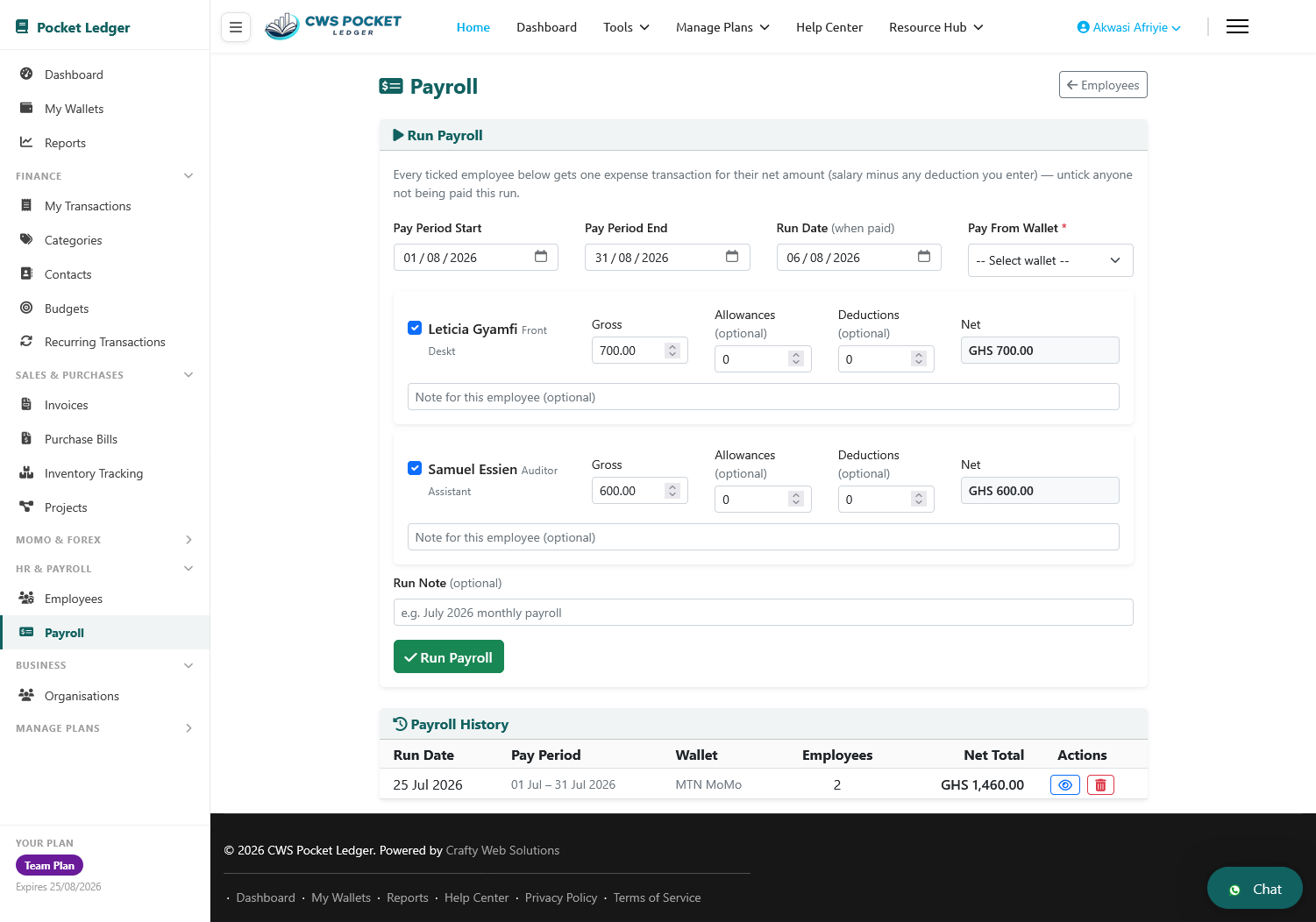
When it's time to pay your team, open Payroll and start a new run. Each employee's gross salary is already there from their setup. Add any allowances or deductions specific to that pay period — a transport allowance, an advance being repaid, whatever applies — and the net amount calculates itself. No separate formula to maintain, no risk of a spreadsheet cell referencing the wrong row.
Step 3: Generate payslips automatically
Once a payroll run is confirmed, a payslip is generated for each employee automatically — gross pay, allowances, deductions, and net pay, laid out properly rather than formatted by hand. Download it, or email it directly to the employee if that's enabled for your account. Either way, there's a real, professional payslip for every payment, which matters both for your own records and if an employee ever needs proof of income for something like a loan or rental application.
Step 4: Everything is already recorded correctly
Because each payroll run creates the actual expense transactions behind the scenes — from the wallet and category you set up for each employee — your books are accurate the moment payroll is confirmed. There's no separate step of "now go record these payments in my accounts," because that step already happened as part of running payroll itself.
A practical tip: match pay frequency to reality, not convenience
It's tempting to set every employee to "monthly" for simplicity, even if some are actually paid weekly or bi-weekly in practice. Resist that — matching the real pay frequency means your cash flow reports actually reflect when money leaves the business, which matters if you're trying to plan around when payroll costs hit your wallet versus when client payments come in.
Where to see the full picture
Each employee's own profile shows their complete payment history — every payslip, every amount, dated and searchable — so if a question ever comes up about what someone was paid and when, the answer is a click away rather than a search through old spreadsheet versions or WhatsApp messages.
Getting started
If you're not on CWS Pocket Ledger's payroll tool yet, add your first employee under Employees and run your next payroll cycle through it instead of a spreadsheet. The setup takes a few minutes per employee; every payroll run after that takes a fraction of the time it used to.